Web Interface
The Sync-in web interface provides a modern, clean, and modular navigation experience, structured around several functional areas to maximize efficiency.
Features
- 🧭 Smooth navigation across main applications.
- 🧱 Smart contextual menu that adapts to the selected app and available actions.
- 🖱️ Full context menu, available with a right-click or long press on an item, for quick access to main actions.
- 📁 Dynamic content area with list or gallery view, sorting, filtering, and contextual actions based on selection.
- ☑️ Selection panel with a preview, file details, related locations, and actions for the selected items.
- 🔎 Integrated search available from the interface header, with filters adapted to the current view.
- 🧵 Interactive breadcrumb navigation to quickly move up the folder or menu hierarchy. Space and share roots use their configured display names instead of internal aliases.
- 🕘 Recents combines recently modified files and recent comments in one chronological view, with filters for all activity, files, or comments.
- ⭐ Favorites provides quick access to files marked as favorites across the personal space, collaborative spaces, and shares.
- 🌙 Light and dark themes: the interface automatically adapts to your system environment.
- 🌐 Multilingual interface: 🇬🇧 English, 🇫🇷 French, 🇦🇩 Catalan, 🇩🇪 German, 🇪🇸 Spanish, 🇵🇹 Portuguese, 🇧🇷 Brazilian Portuguese, 🇮🇹 Italian, 🇳🇱 Dutch, 🇨🇳 Chinese, 🇮🇳 Hindi, 🇹🇷 Turkish, 🇯🇵 Japanese, 🇰🇷 Korean, 🇵🇱 Polish, and 🇷🇺 Russian.
Organization
This section describes the main components of the Sync-in web interface to help you better understand its structure and usage.
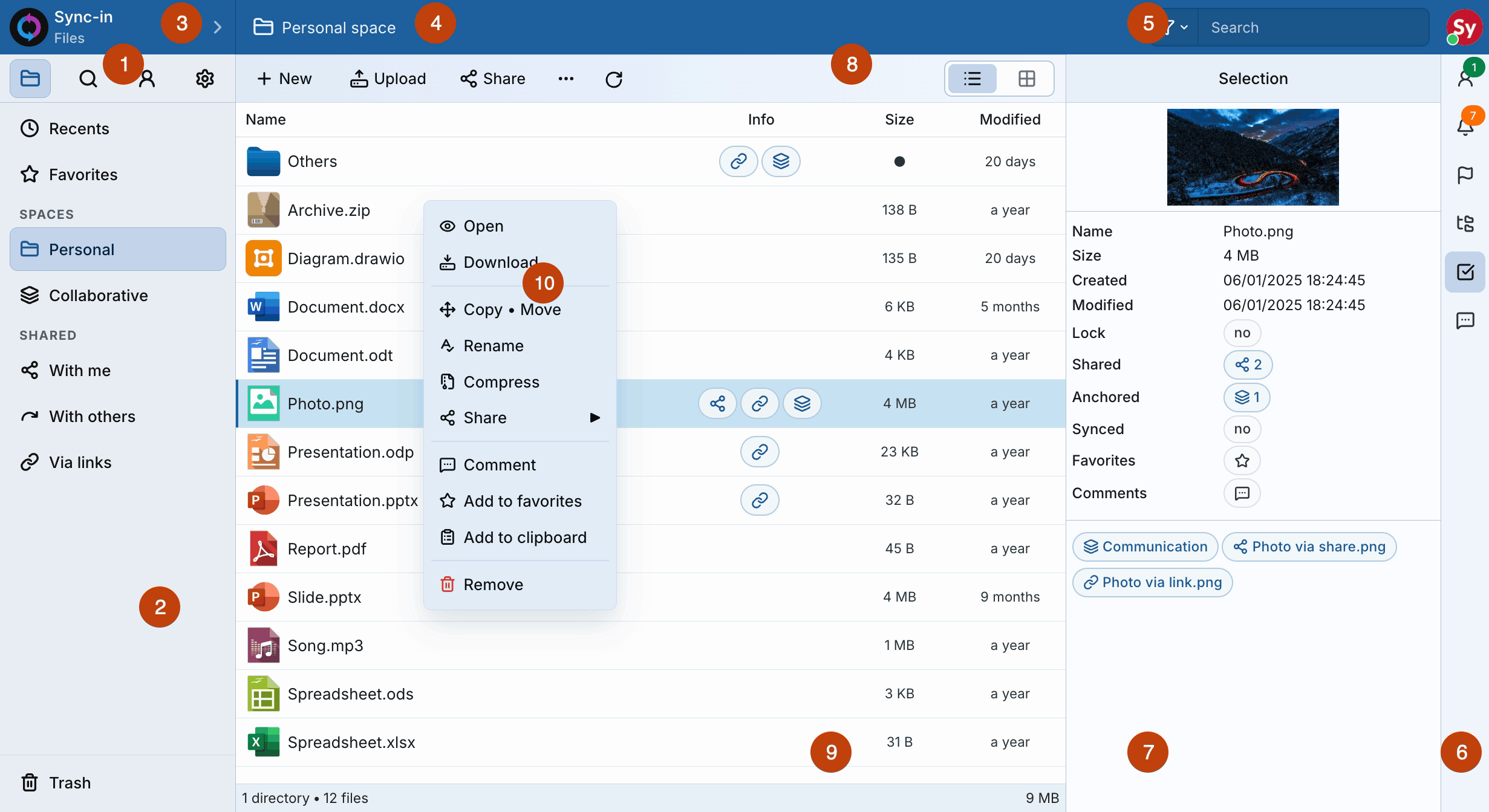

1. Application switcher
- Provides access to the main applications available to the user, such as Files, Search, Account, and Administration.
- The available entries depend on the user's permissions.
2. Application navigation menu
- Displays the menus for the application selected in the application switcher
1. In Files, this includes Recents, Favorites, available data repositories, shares, and trash according to the user's permissions.
3. Application identity
- Displays the Sync-in logo and the name of the active application.
4. Current location and breadcrumb trail
- Shows the active location and, when needed, the full path of the current folder.
- Each path segment can be selected to move up in the hierarchy.
5. Search
- Searches from the current interface and provides filters to refine the results.
6. Contextual bar (right sidebar)
- Selecting an icon expands or collapses the contextual panel.
- Shows the user avatar (top right), with access to preferences.
- Also displays online users, notifications, and tasks.
- May provide extra features depending on the active app (e.g. Comments, Tree view, Window manager, etc.).
7. Contextual panel
- Displays the content or functionality linked to the icon selected in the contextual bar
6. - In selection mode, it shows a preview, metadata, related locations, comments, and favorite status for the selected item. For multiple items, it also provides their total size and the available actions.
8. Application action bar
- Shows the actions relevant to the current app (e.g. Create, Download, Share), based on the menu selected in
2. - Lets you change the view in content area
9(e.g. list or gallery). - Also offers actions and display options for the items shown in area
9.
9. Content area
- Displays the content corresponding to the selected menu from
2. - For example, in Files, it lists the files and folders of the current directory. Selecting a file or folder icon activates selection mode and opens
panel
7.
10. Context menu (right-click or long press)
- Gathers all available actions for the selected item (e.g. Open, Download, Copy or move, Rename, Share, Comment, Add to favorites,
Remove), complementing the action bar
8.