User Account
Only users and guests can access the user-account sections. They are unavailable through public links, and the entries shown depend on the account type and its permissions.
Profile
The Account page lets you view and edit your personal profile and its security settings. Interface and file settings are grouped on the dedicated Preferences page.
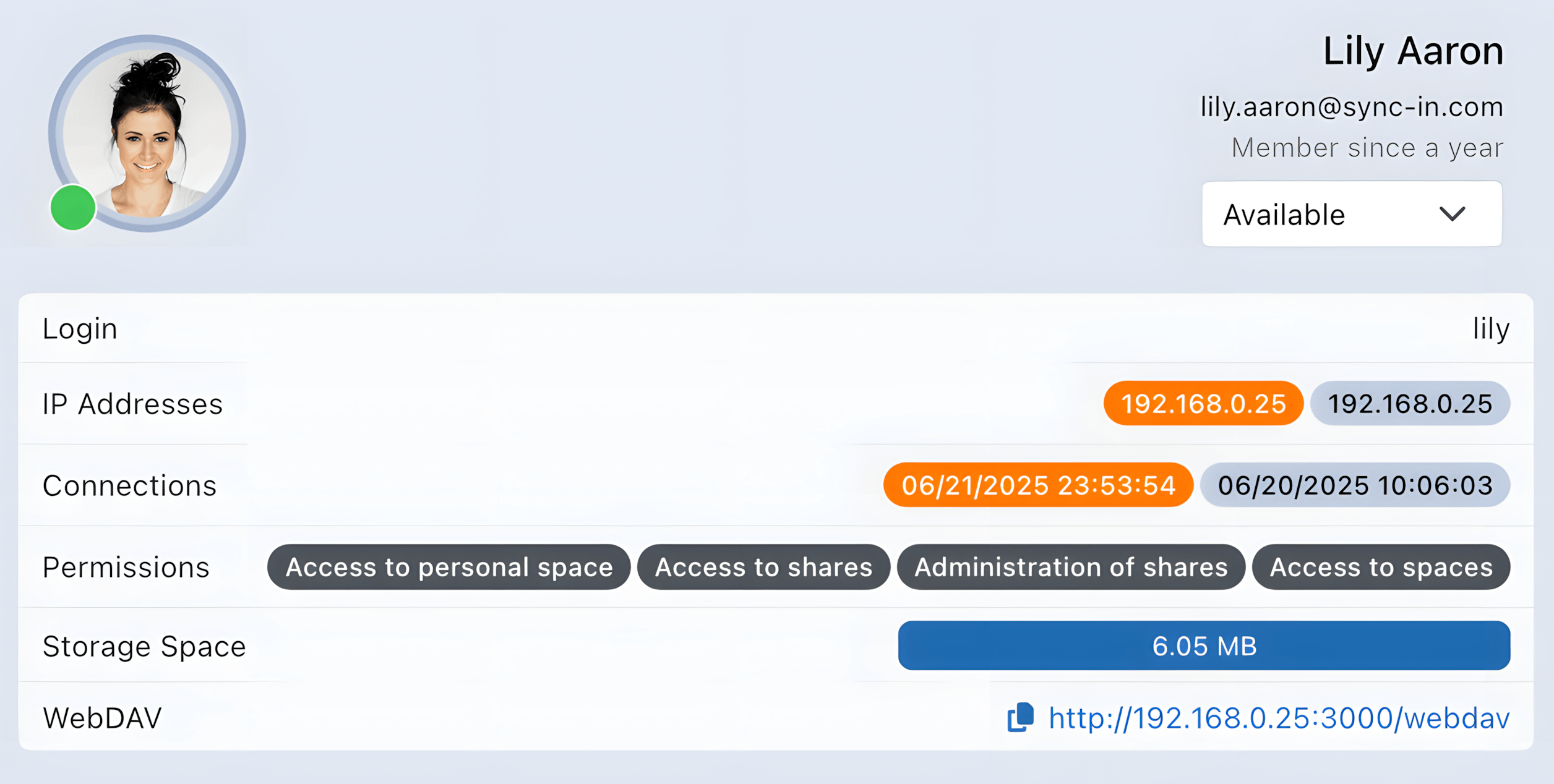
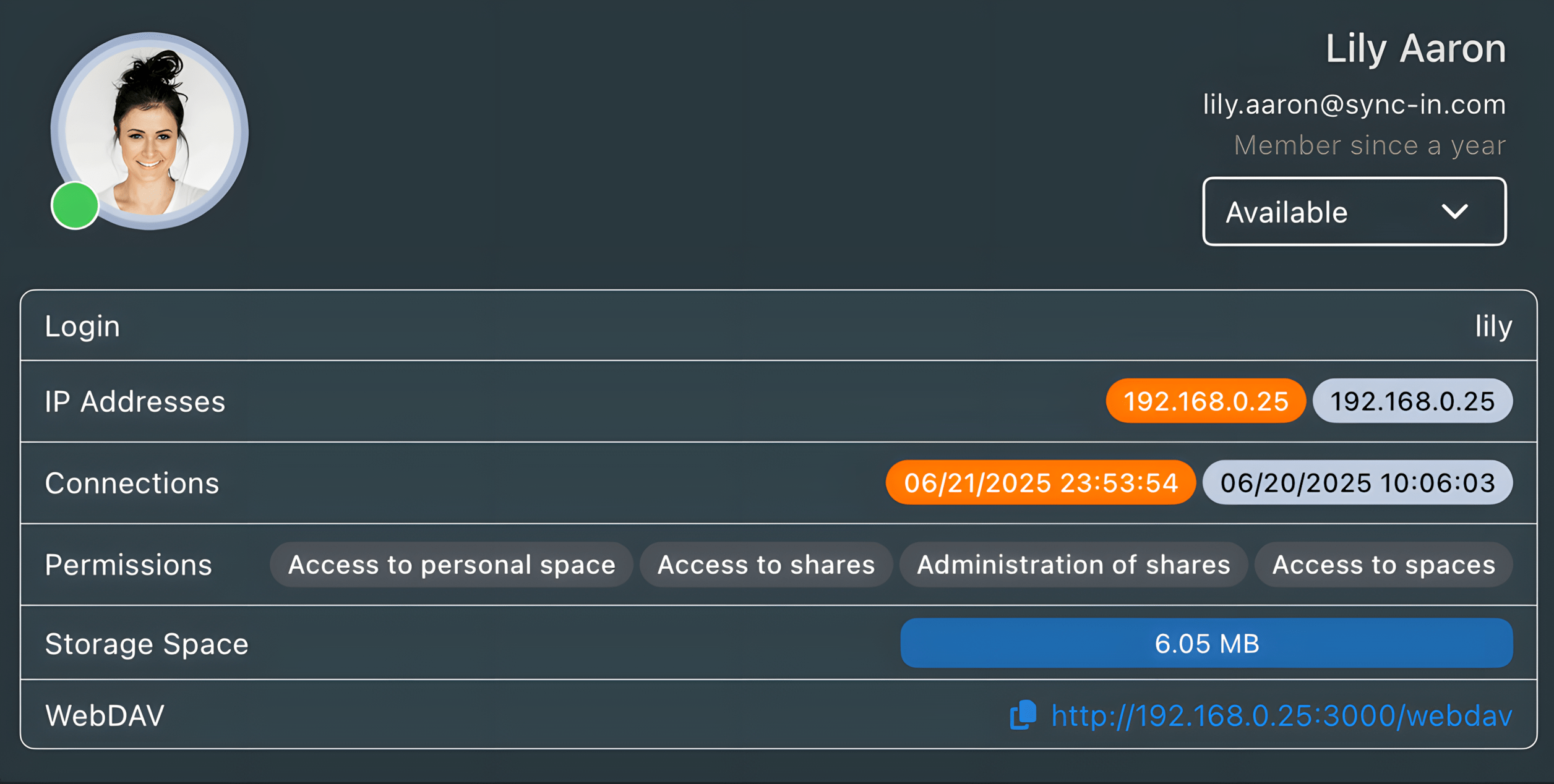
The profile brings together your account information and security settings.
Account information
- Identity: name, email address, and account age.
- Status: activity indicator (available, away, busy, etc.).
- Avatar: automatically generate or upload a profile picture.
- Login: login identifier.
- IP addresses: most recent IP addresses used.
- Connections: most recent login dates and times.
- Permissions: access and admin rights, such as access to collaborative spaces or admin capabilities.
- Used storage: displays the volume used in your personal storage. If a quota is set, it shows the used volume relative to the allowed limit.
- WebDAV link: direct access to your files via WebDAV.
Password
- Change password: enter your current password before defining a new one.
Guests cannot change their avatar, and only their managers are allowed to update their password.
Security
- Two-Factor Authentication (2FA): activation, reset, and deactivation of the second authentication factor.
- Application Passwords: generation and management of specific passwords to access the application without using the main password.
- Sign out: end the current user session.
Two-factor authentication can be enabled by the user only if the feature has been previously authorized by the administrator.
Preferences
The Preferences page groups personal settings for the interface, navigation, files, and notifications.
Interface
- Language: select the interface language.
- Theme: select the interface display theme.
- Single-click navigation: on a computer, opens navigable items with a single click instead of a double-click throughout the interface. This option is disabled by default; on a touch device, items already open with a single tap.
Quick Access
- Display: choose which items appear in the quick-access area, such as recent items and favorites.
- Position: choose where the quick-access area appears in the interface.
Files
- Show hidden files: controls whether the file explorer and recent files display files and folders whose name or path contains an item beginning with a dot.
- Full-text search: for standard users, controls content indexing for personal files, used for text-based search within documents.
- Document editor: appears when Collabora Online is enabled with OnlyOffice or Euro-Office. For office documents supported by both editors, set a default editor or choose one when opening the document. draw.io is not part of this choice.
Notifications
- Channels: choose notification channels (in-app, email, or both).
- System display: available only from the desktop application; displays notifications through the operating system rather than within the application.
Clients
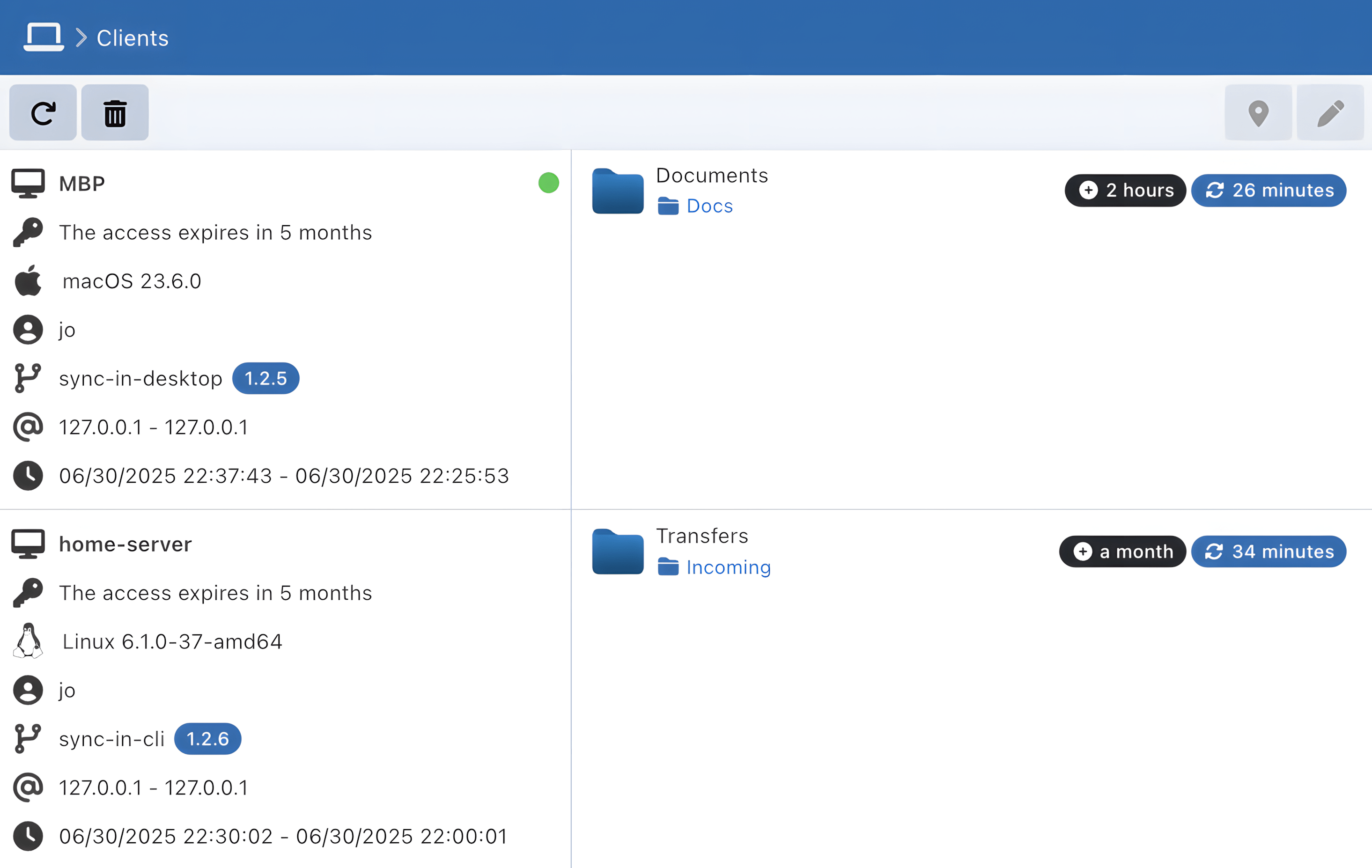
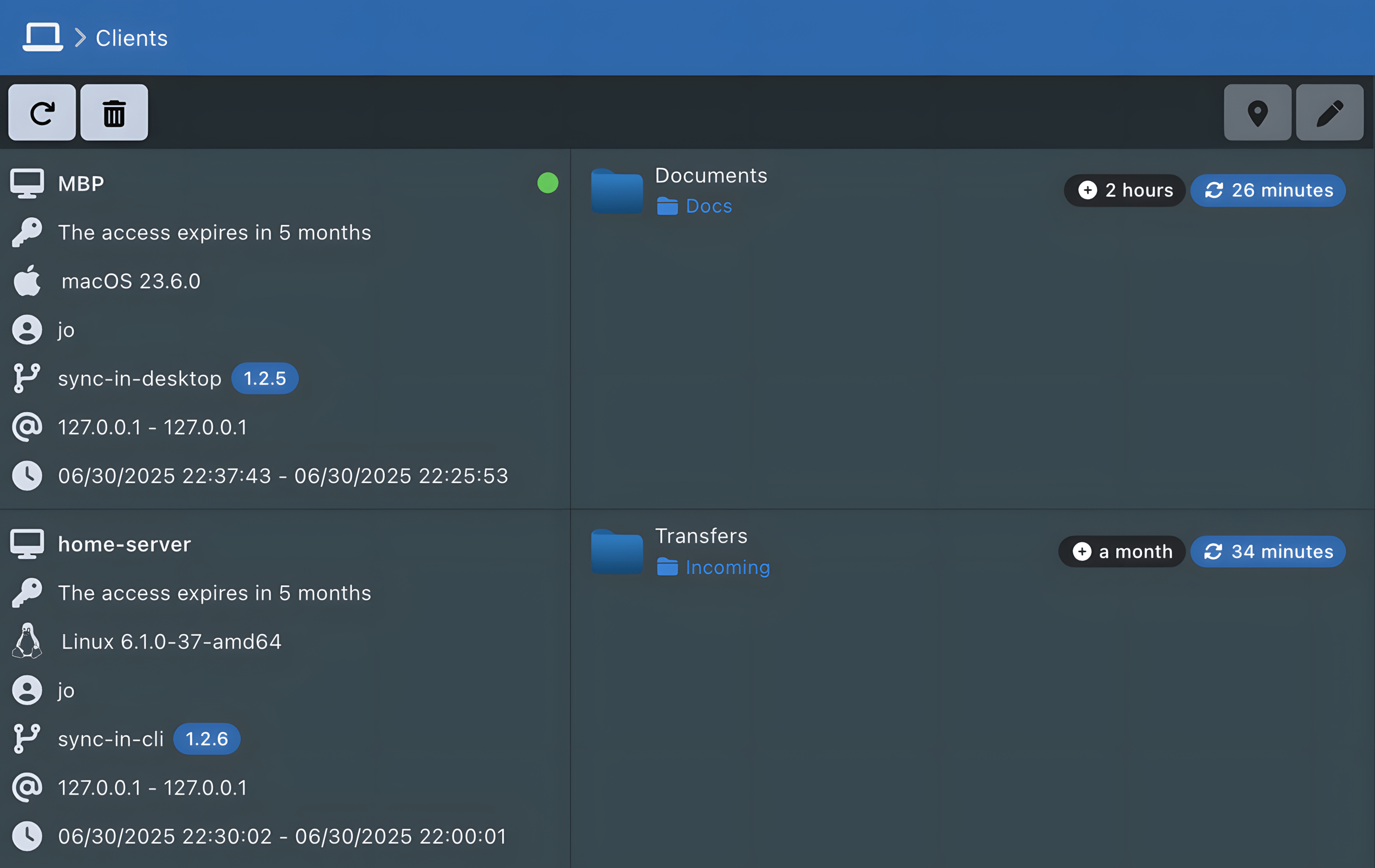
This module allows users with the desktop access permission to manage their application clients, such as the desktop application and the command-line interface.
Available features:
- 🔎 View registered clients: computer name, access expiration date, operating system, client version and type, latest IP addresses and login dates.
- 📁 View synchronizations linked to each client: synced paths, creation date, last sync date.
- 🗑️ Remove a client to immediately revoke access.
- 🔄 Modify synchronization paths for a client, even remotely (without being connected from that client).
Groups
This module lets you view the administrative and personal groups you belong to and manage groups for which you have the manager role, based on the rights associated with each group type.
Administrative Groups
- If you are a manager of an administrative group, you can manage the group's members.
👉 See the Administrative Groups section for more details.
Personal Groups
- With the personal group administration permission, you can create groups and add users.
- If you are a manager of a personal group, you can manage the group and its members.
👉 See the Personal Groups section for more details.
Guests
This module allows you to view and manage guests for whom you are assigned as a manager.
Creating a guest requires the guest administration permission.
👉 See the Guests section for more details.
Applications
Users with the desktop access permission can download the client applications from this module.